Email Blaster help page
Quick start – How to send personalized email to multiple recipients (3-5 minutes)
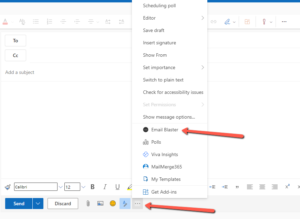
- Find the Email Blaster icon at the bottom tool bar of your compose window, click it. It will open the task pane (side bar) of Email Blaster.
- Start writing your email, as you normally would. For example:
Hi John,
It was a please meeting you at the conference!
Cheers,
Dr. Grace Hopper
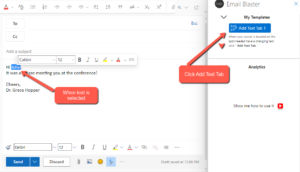
- Now, select the name “John” and while it’s selected, click the Add Text Tab on the right
- Now, the selected text should be replaced with a {{tab1}} string, and you should see personalization fields in the Email Blaster pane:
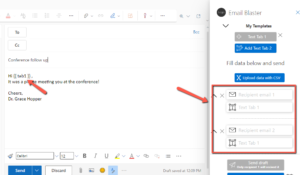
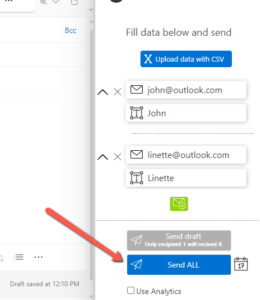
- Now fill the fields with email and name, for example:
Email 1: john@outlook.com
Name 1: John
Email 2: linette@outlook.com
Name 2: Linette
Like this:
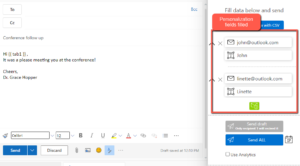
(You can add more recipients by clicking the green  button)
- To send the same, but personalized email to all the recipients click the Send All button
That’s it! Personalized emails in 3 minutes. Please let us know if you have any questions.